
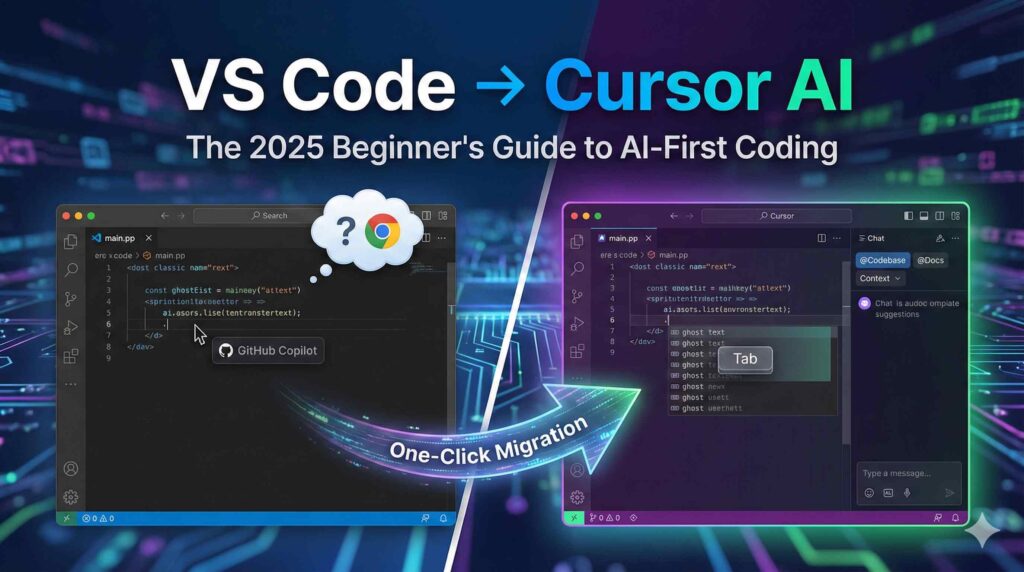

Learn how to use Cursor AI code editor in this step-by-step beginner’s guide. Discover how to migrate from VS Code, use Cursor Tab, and code 10x faster with AI features.
If you are still switching back and forth between VS Code and ChatGPT to write code, you are doing it the hard way.
In 2025, the standard for developers is changing. Enter Cursor AI, the AI-first code editor that is rapidly stealing users from VS Code. Why? Because it doesn’t just autocomplete lines; it understands your entire project, predicts your next move, and can refactor entire files in seconds.
Whether you are a Computer Science student or a seasoned full-stack developer, this guide will walk you through exactly how to set up Cursor AI, migrate your VS Code extensions, and start coding 10x faster today.
What is Cursor AI? (And Why Switch?)
Cursor is an “AI-first” code editor. The most important thing you need to know is that Cursor is a fork of VS Code.
This means it looks, feels, and acts exactly like VS Code. All your muscle memory, keyboard shortcuts, and extensions work immediately. The difference? It has a powerful AI engine baked into the core interface, not just bolted on as a plugin.
Key differences for Tier 1 Developers:
- Privacy Mode: A “Local Mode” that ensures your code never leaves your machine (crucial for enterprise jobs).
- Context Awareness: Unlike ChatGPT, Cursor can “read” your entire codebase to give relevant answers.
Step 1: Installation and The “One-Click” Migration
Many developers hesitate to switch because they don’t want to lose their themes and extensions. Cursor solves this immediately.
- Download: Go to the official Cursor website and download the installer for Mac, Windows, or Linux.
- The Import Screen: Upon first launch, you will see a prompt: “Import extensions, themes, and settings from VS Code?”
- Click “Yes”: Within 30 seconds, Cursor will clone your exact VS Code setup.
Pro Tip: If you missed the initial prompt, you can always go to Settings > General > Import VS Code Settings to do it manually.
Step 2: Mastering “Cursor Tab” (The Supercharged Autocomplete)
If you have used GitHub Copilot, you know about “ghost text.” Cursor takes this a step further with Cursor Tab.
Instead of just suggesting the next word, Cursor Tab suggests diffs. It can predict edits, cursor movements, and even changes across multiple lines simultaneously.
- How to use it: simply start typing.
- The Magic: When you see the grey suggestion text, hit
Tabto accept. - Why it wins: It is incredibly fast and adapts to your specific coding style the more you use it.
Step 3: Command K (Edit Without Coding)
This is the feature that changes the game for beginners. You don’t always need to know the syntax; you just need to know the logic.
- Shortcut: Highlight any code block and press
Cmd + K(Mac) orCtrl + K(Windows). - The Prompt: A text box appears. Type instructions in plain English.
Examples of what to type:
- “Refactor this function to use async/await.”
- “Add error handling for 404 responses.”
- “Change all CSS class names to Tailwind utility classes.”
Cursor will generate the new code and show you a “Diff” view (Green lines for new code, Red lines for old code). You simply press Accept or Reject.
Step 4: The Chat Sidebar & The Power of @ Symbols
This is the feature that makes Cursor superior to using ChatGPT in a browser.
Open the chat sidebar with Cmd + L (Mac) or Ctrl + L (Windows). The secret weapon here is the Context Selectors using the @ symbol.
The @Codebase Command
When you type @Codebase in the chat, Cursor scans your entire project folders.
- Prompt: “@Codebase where is the login logic handled in this app?”
- Result: It finds the exact file and line number for you.
The @Docs Command
Stop opening Google tabs to read documentation.
- Type
@Docs-> Select “Add new doc” -> Paste the URL of a library (e.g., Stripe, Next.js, PyTorch). - Cursor will index that documentation. Now you can ask: “@Docs How do I implement a payment intent in Stripe?” and it gives you the answer based on the official documents.
Cursor AI vs. GitHub Copilot: The 2025 Showdown
Many users ask: is Cursor better than paying for GitHub Copilot? Here is the breakdown:
| Feature | GitHub Copilot | Cursor AI |
| Pricing | $10/month | Free / $20/month (Pro) |
| IDE Integration | Plugin (Extension) | Native (Built-in) |
| Context | Current File | Entire Codebase |
| Code Edits | Suggestions only | Can Delete/Rewrite Code |
| Setup | Easy | Requires Installing new IDE |
Verdict: For pure speed and “agentic” workflow, Cursor wins. For enterprise compliance where you cannot switch IDEs, Copilot is safer.
Is Cursor AI Free? (Pricing Explained)
- Hobby Plan (Free): You get access to the AI features, but with slower “standard” request speeds and a limit on premium models (like Claude 3.5 Sonnet or GPT-4o).
- Pro Plan ($20/month): Unlimited fast completions and priority access to the newest AI models.
For most beginners and students, the Free Plan is more than enough to get started and build amazing projects.
Final Thoughts
The transition from a standard code editor to an AI-powered one is inevitable. By switching to Cursor today, you aren’t just changing tools; you are future-proofing your workflow.
Ready to start? Download Cursor, import your settings, and try pressing Cmd + K on your messiest piece of code. You won’t look back.
🛠️ Instructions for Posting on WordPress
- URL Slug: Set your URL to something clean like:
yourwebsite.com/how-to-use-cursor-ai-beginners - Featured Image: Take a screenshot of the Cursor interface (dark mode looks best) and set it as your Featured Image.
- Tags: Cursor AI, VS Code, Coding Tools, AI for Developers, Python, JavaScript.
- Meta Description (SEO): “Learn how to use Cursor AI code editor in 2025. A complete beginner’s guide to installing, migrating from VS Code, and using Cursor Tab features.”
💡 Where to put your AdSense?
- Ad 1: Place an “In-Article” ad right after the “Step 1” section.
- Ad 2: Place a display ad immediately after the “Comparison Table”.
- Ad 3: Place a “Matched Content” or standard ad at the very bottom of the post.
❓ Frequently Asked Questions (FAQ)
Is Cursor AI free to use?
Yes, Cursor offers a Hobby Plan that is completely free forever. It includes 2000 “completions” (smart edits) and a limited number of premium requests to models like GPT-4o and Claude 3.5 Sonnet. For power users, the Pro Plan costs $20/month and offers unlimited completions.
Does Cursor AI steal my code?
No. Cursor has a dedicated “Privacy Mode” feature. When enabled, your code is never stored on their servers and is never used to train their AI models. Cursor is SOC 2 certified, making it safe for enterprise and professional work.
Can I use my VS Code extensions in Cursor?
Yes! Since Cursor is a fork of VS Code, it supports almost the entire VS Code extension marketplace. You can import your themes, keybindings, and plugins (like Prettier, ESLint, or Live Server) in one click during setup.
Is Cursor better than GitHub Copilot?
Most developers find Cursor superior because the AI is native to the editor, not just a plugin. This allows Cursor to “see” your entire codebase at once, scan terminal errors, and apply multi-file edits, whereas Copilot is mostly limited to the single file you are currently working on.
Does Cursor work offline?
You can edit code offline just like in VS Code. However, the AI features (like Chat and Tab Autocomplete) require an active internet connection to communicate with the large language models (LLMs) unless you are using a local model setup.

